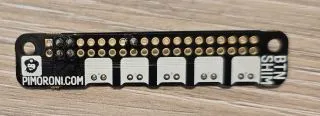
Button SHIM
5 buttons and RGB LED using i2c I/O expander by Pimoroni
Connection Types
Overview
The Button SHIM is a compact board featuring 5 tactile buttons and a single RGB LED, designed to sit on top of a Raspberry Pi GPIO header but also works with other boards.
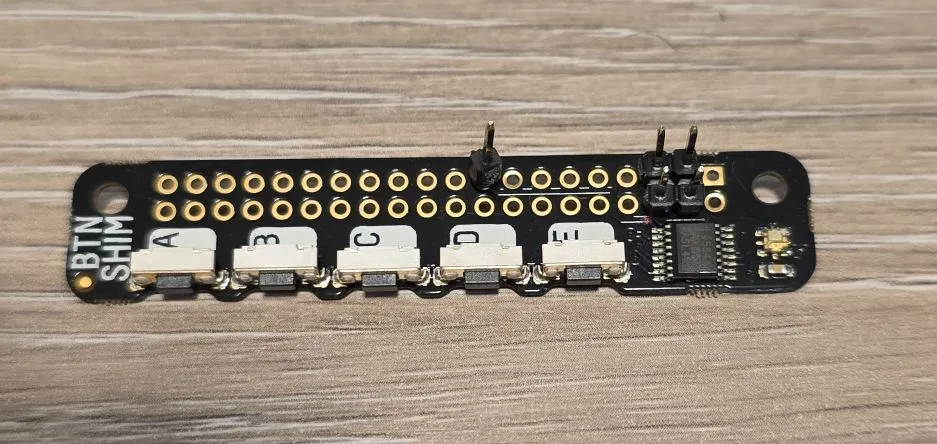
The board features:
- 5x tactile, right-angle push buttons (A, B, C, D, E)
- Single RGB LED (APA102)
- TCA9554A I/O expander for button inputs
- I2C interface (address 0x3F)
- 3.3V or 5V compatible
Test Status
Testing done and full example available.
- ✅ Basic Config - well, full configuration 🙂
Configuration Notes
⚠️ Note: While ESPHome has TCA9555 support, TCA9554 and TCA9554A are not supported because the I2C register addresses are different (TCA9555 has 2x registers of TCA9554). ✅ External component available (by me 🙂)
⚠️ Note: Check out PCA9554 support. Check if external component is necessary because I2C supported addresses and registers are the same as TCA9554/TCA9554A. Actually PCA9554 and TCA9554 should be software compatibile, however software SPI does not work when I tested it. My buttons worked with the component, but not the LED on the shim.
The APA102 LED is supported via SPI LED strip platform, however, needs to use “software” SPI because it has to use TCA9554 outputs.
Basic Configuration
Wiring
Note that pinout for Button Shim is following Raspberry Pi 40 pin connector.
| Button Shim | ESP32 DevKit | Notes |
|---|---|---|
| 5V (pin 4) | 5V | Power for built in LED - can use 3V3 if needed |
| 3V3 (pin 17) | 3V3 | Power for the TCA9554 controller |
| GND (pin 6) | GND | |
| GPIO2 (pin 3) | GPIO21 | I2C1 SDA |
| GPIO3 (pin 5) | GPIO22 | I2C1 SCL |
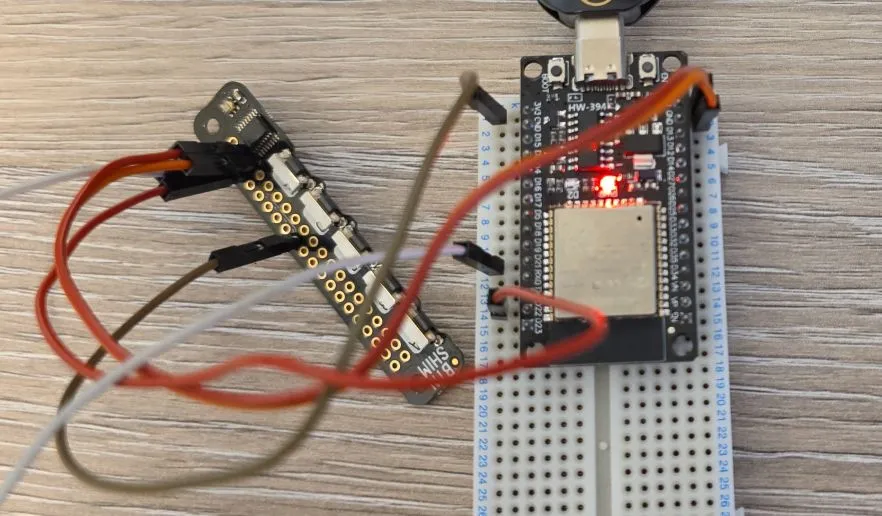
Example
It’s a longer example, but it covers all buttons and the built in LED. See further description below.
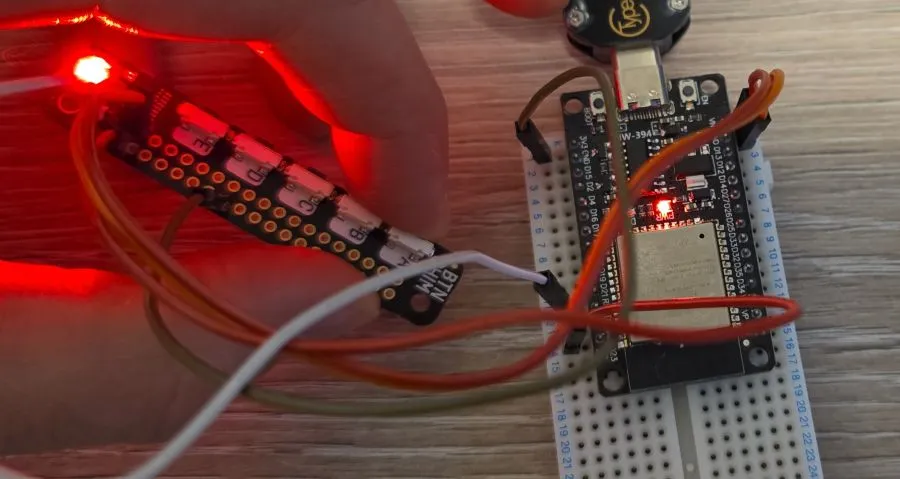
For more photos see other images section.
esphome:
  name: my-btn-shim

esp32:
  board: esp32dev
  framework:
    type: esp-idf

logger:

external_components:
    - source: github://barbarachbc/esphomecomponents
      components: [ tca9554 ]
      refresh: 5min

substitutions:
  builtin_led_pin: GPIO02
  i2c_sda_pin: GPIO21
  i2c_scl_pin: GPIO22

output:
  - platform: gpio
    pin: ${builtin_led_pin}
    id: builtin_led

light:
  - platform: binary
    name: "Built in LED"
    output: builtin_led
  - platform: spi_led_strip
    num_leds: 1
    id: expander_led
    spi_id: expander_led_spi
    data_rate: 1kHz

binary_sensor:
  - platform: gpio
    pin:
      tca9554: btn_shim
      number: 0
      inverted: true
    id: btn_a
    on_press:
      then:
        - light.addressable_set:
            id: expander_led
            range_from: 0
            range_to: 0
            red: 100%
            green: 22%
            blue: 12%
    on_release:
      then:
        - light.addressable_set:
            id: expander_led
            range_from: 0
            range_to: 0
            red: 0%
            green: 0%
            blue: 0%
  - platform: gpio
    pin:
      tca9554: btn_shim
      number: 1
      inverted: true
    id: btn_b
    on_press:
      then:
        - light.addressable_set:
            id: expander_led
            range_from: 0
            range_to: 0
            red: 22%
            green: 100%
            blue: 12%
    on_release:
      then:
        - light.addressable_set:
            id: expander_led
            range_from: 0
            range_to: 0
            red: 0%
            green: 0%
            blue: 0%
  - platform: gpio
    pin:
      tca9554: btn_shim
      number: 2
      inverted: true
    id: btn_c
    on_press:
      then:
        - light.addressable_set:
            id: expander_led
            range_from: 0
            range_to: 0
            red: 22%
            green: 10%
            blue: 100%
    on_release:
      then:
        - light.addressable_set:
            id: expander_led
            range_from: 0
            range_to: 0
            red: 0%
            green: 0%
            blue: 0%
  - platform: gpio
    pin:
      tca9554: btn_shim
      number: 3
      inverted: true
    id: btn_d
    on_press:
      then:
        - light.addressable_set:
            id: expander_led
            range_from: 0
            range_to: 0
            red: 22%
            green: 22%
            blue: 22%
    on_release:
      then:
        - light.addressable_set:
            id: expander_led
            range_from: 0
            range_to: 0
            red: 0%
            green: 0%
            blue: 0%
  - platform: gpio
    pin:
      tca9554: btn_shim
      number: 4
      inverted: true
    id: btn_e
    on_press:
      then:
        - output.turn_on: builtin_led
    on_release:
      then:
        - output.turn_off: builtin_led

i2c:
  sda: ${i2c_sda_pin}
  scl: ${i2c_scl_pin}

tca9554:
  - id: btn_shim
    address: 0x3f

spi:
  - id: expander_led_spi
    clk_pin:
      tca9554: btn_shim
      number: 6
    mosi_pin:
      tca9554: btn_shim
      number: 7
    interface: software
Example Description
- Uses ESP32 DevKit
- I2C uses
GPIO21andGPIO22, see substitutions if you need to use a different board - I2C is required, and
external_componentis used for TCA9554 - tca9554 “hub” is setup at 0x3f address
- All 5 buttons are wired up to turn-on while pressed and turn-off LEDs when released:
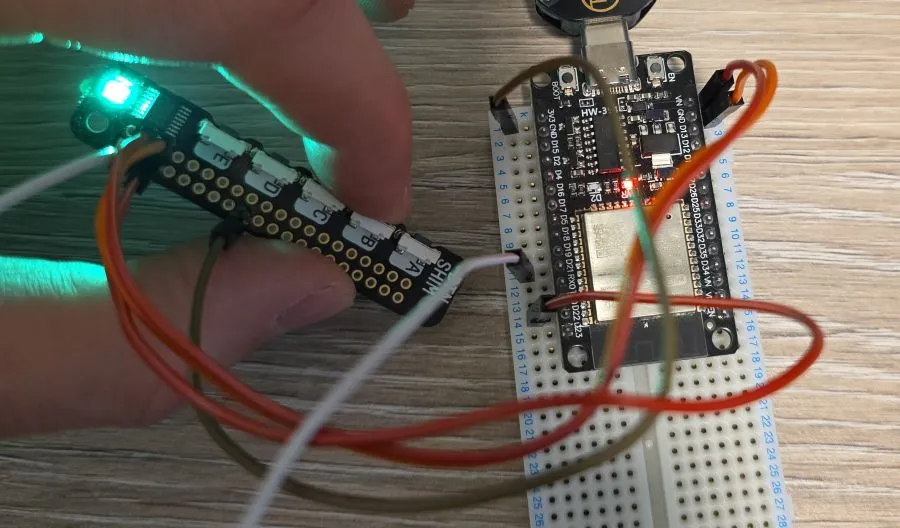
- Button A: sets button shim’s LED to Red-ish colour
- Button B: sets button shim’s LED to Green-ish colour
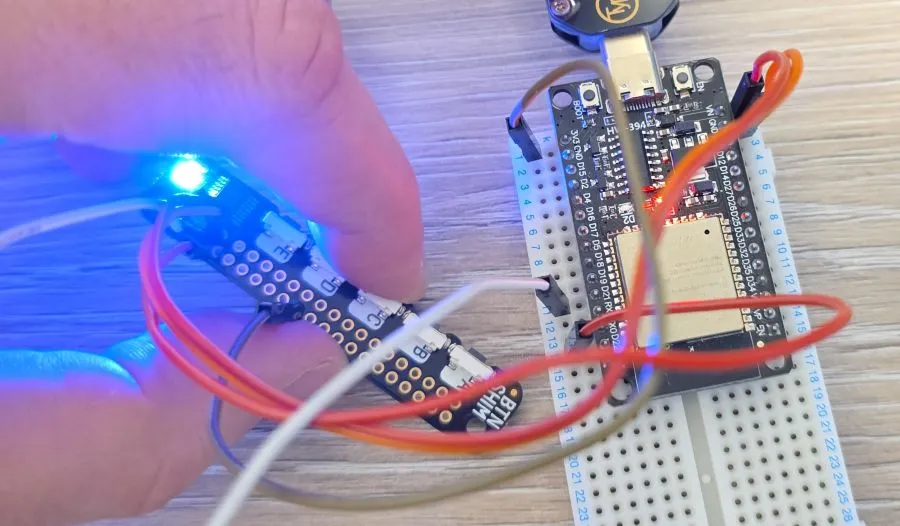
- Button C: sets button shim’s LED to Blue-ish colour
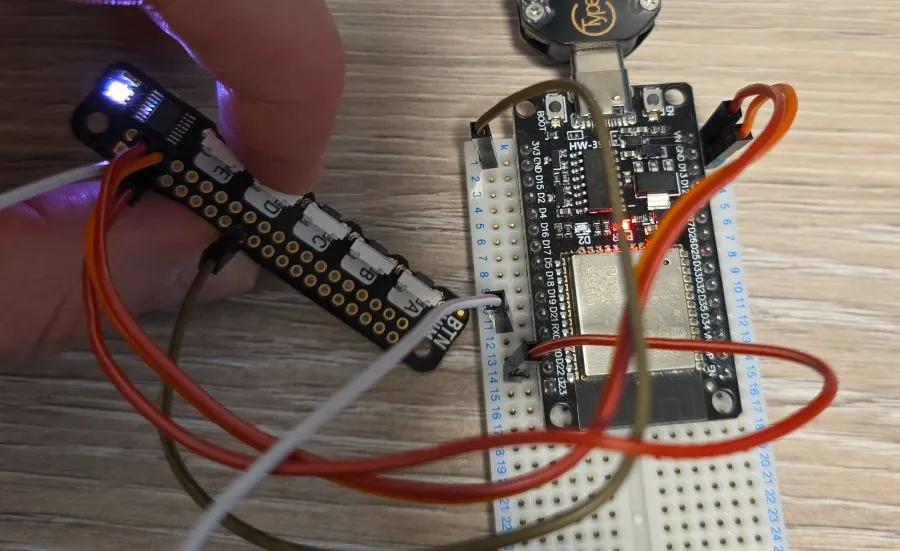
- Button D: sets button shim’s LED to some lower brightness
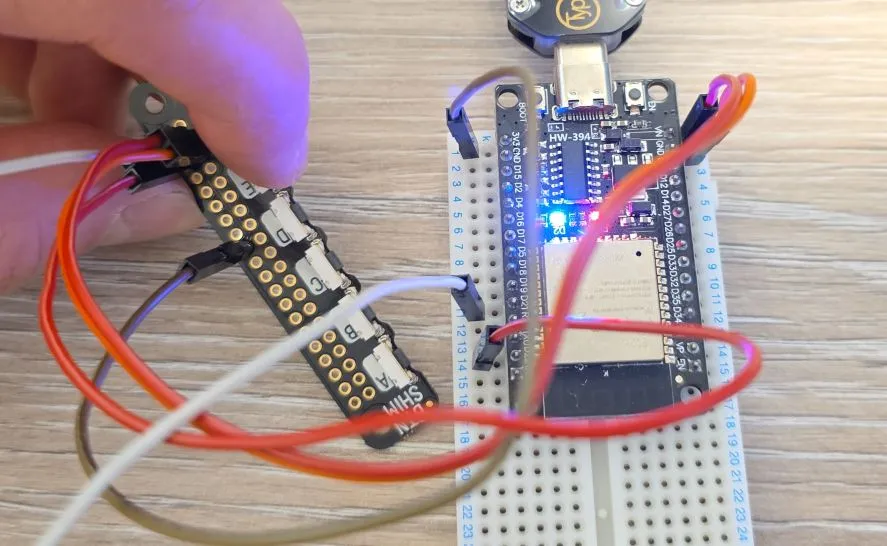
- Button E: turns on/off board’s built in LED
- Software SPI is used for the shim’s built in LED, the LED is wired to 6th and 7th pin of the TCA9554
- SPI LED Strip Light component is used for the LED, I used the slowest data rate of 1kHz for it.
Other Images
Button B:
Button C:
Button D:
Button E:
Back of the board: